 minute read
-
The way that you search for articles in ViKING POS depends on the display's layout:
-
If your organization uses the menu on the right side of the display to provide access to such features, select Find article in the menu.
-
If your organization uses the left side of the display to provide access to features on tabs, select the Article tab.
-
-
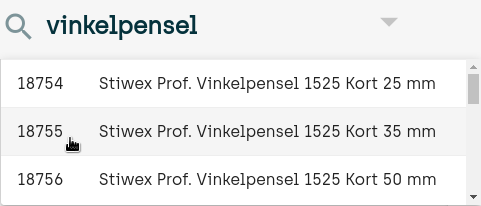
You can search for article numbers as well as article names. Use your till's physical keyboard to search.
The Article number search field is active by default. If you want to use the Article name search field instead, press your keyboard's Tab key once.
-
In the list of matching results, select the required article.
-
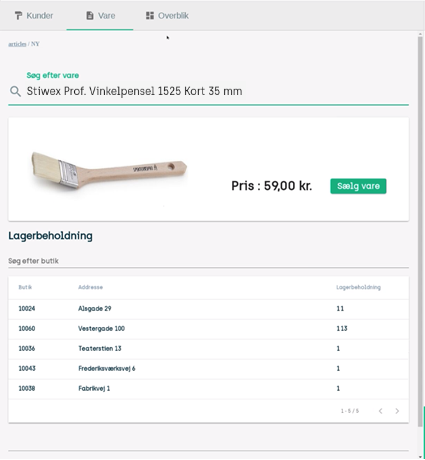
Only applies in some organizations: When you select an article in the search results, you can view article information, including price and stock level in your store as well as other stores in your organization. Ask your supervisor if you're in doubt.
-
To add the article to the journal so that you can sell it, tap
 on the relevant line in the search results.
To sell multiple units of the article, simply tap
the required number of times, for example three times to sell three units of the article.
Related: Handle sales in ViKING POS
Related: Handle returns in ViKING POS
Related: ViKING POS till management (cash statements, etc.)
Related: ViKING POS dashboard
Related: Handle B2B customers in ViKING POS
© 2026 Fiftytwo A/S • Disclaimer
Last update: 29 May, 2026 12:21:08 CET
Share this page with your colleagues: