 minute read
To view statistics about sales in ViKING POS, select Dashboard on the left side of the display.
View statistics
It's possible to display many types of statistics about numbers of customers, revenue per till, revenue per store, top-selling articles, etc.
Exactly which statistics you're able to view depends on what's been set up in your organization and which role you have. For example, not every role in your organization may have rights to view information about the organization's total revenue. The illustration in the following is thus an example only.
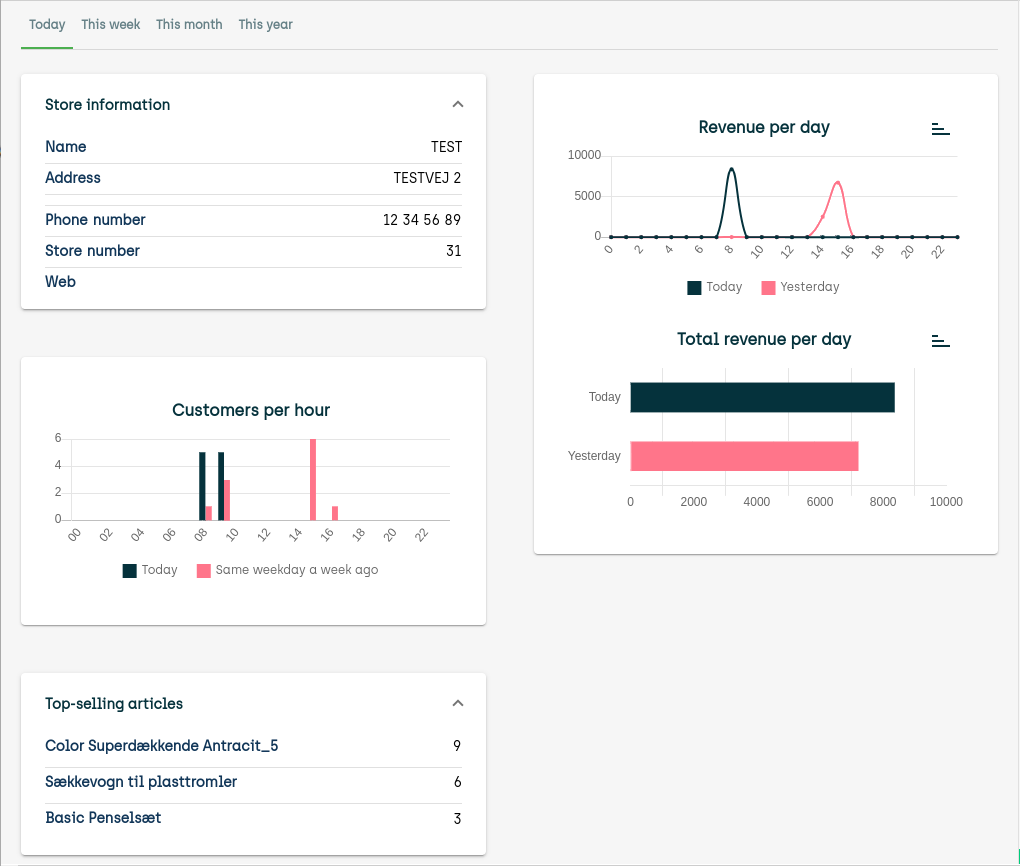
Customize dashboard
-
Drag
 individual widgets around the dashboard to position them exactly where you want them
 -
Collapse
 and expand
  widgets as required
 -
Change
 the way that a widget displays data, for example from a bar chart to a line chart.
The ability to customize the dashboard requires that dashboards have been set up to be customizable by shop assistants. Ask your supervisor if you're in doubt.
The dashboard takes up the whole screen. How do I get back to selling articles?
Related: Handle sales in ViKING POS
Related: Handle returns in ViKING POS
Related: Search for articles in ViKING POS
Related: ViKING POS till management (cash statements, etc.)
Related: Handle B2B customers in ViKING POS
Related: Manage campaigns in ViKING POS
© 2026 Fiftytwo A/S • Disclaimer
Last update: 29 May, 2026 12:21:08 CET
Share this page with your colleagues: