 minute read
On the ViKING Store Management dashboard you find widgets with information about the status of your store's tills as well as statistics about revenue, customers, and top-selling articles.
-
Open ViKING Store Management in a browser, connect to the IP address or hostname of the required ViKING store service, and log in.
-
Navigate to the dashboard:
-
Expand
 the menu in the left part of the page
 -
Select Overview
-
Some of the dashboard's widgets may not be available to everyone. For example, it may require certain user rights to view widgets with revenue information. Ask your Fiftytwo consultant if you're in doubt.
Store information
The Store information widget provides a quick summary of information about your store.
If you need more details about your store, see Manage store information in ViKING Store Management .
POS status
The POS status widget provides an initial overview of the states of your store's tills. The widget's content automatically updates at regular intervals.
Drill down to more details
For a more detailed till status view, click  in the top part of the widget.
The detailed view also automatically updates at regular intervals. It contains the following information:
-
POS: Till number.
-
Name: Till name.
-
State: The status of the POS in question (Signed on, Signed off, Offline, Disconnected, etc.).
-
Component: The server component currently involved.
-
Last telegram: A telegram is an exchange of information between the till and the store 's ViKING store service. Telegrams use a request/response model, where the till always performs the request part and the store service responds. The timestamp shows when the last exchange took place.
-
Telegram code: The telegram code describes what the last telegram exchange between the till and the store service was about. Depending on the nature of your store, you' may often see telegram codes like 1 (till transaction), 5 (keep alive message), 6 (till asking if any updates are available), 100 (confirmation of answer to 6), but there are hundreds of different telegram codes. Ask your Fiftytwo consultant if you're in doubt.
-
Updates: Number of updates that wait to be applied on the till, for example because the till is offline. A value of, for example, -123 means that 123 updates are waiting to be applied on the till.
-
PLUs: Number of article master data updates, for example price changes, that wait to be applied on the till. Note that article updates are never applied while tills perform transactions.
-
File name: File name of the ViKING software that runs on the till.
View a till's configuration
To view the configuration of a till, click the name of the required till in the widget. This applies no matter what level of the widget you're viewing.
Statistics
View information about:
-
Customers per hour. The data reflects the number of customers who have made a purchase in your store during the selected period, including self-scanning purchases. It doesn't necessarily tell you how many customers have physically passed through your store.
-
Revenue.
-
Top-selling articles.
The default view displays data from the current day, but you can select other periods in the top part of the dashboard: This week, This month, and This year.
If data is available, you can compare data from the selected period with data from the last similar period (yesterday, last week, last month, and last year).
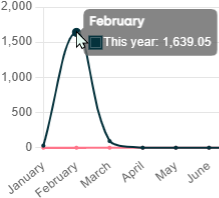
To view exact numbers, place your pointer over a bar in a bar chart or over a data point in a line chart. Example of a line chart, where someone compares data from February in the current year with data from the same month the year before:
Customize dashboard
-
Drag
 individual widgets around the dashboard to position them exactly where you want them
 -
Collapse
 and expand
  widgets as required
 -
Change
 the way that a widget displays data, for example from a bar chart to a line chart.
© 2026 Fiftytwo A/S • Disclaimer
Last update: 29 May, 2026 12:21:08 CET
Share this page with your colleagues: