 minute read
52ViKING POS (Point-Of-Sale) is an extremely flexible and feature-rich web-based user interface for shop assistants who handle sales in supermarkets and other stores.
Despite being feature-rich, 52ViKING POS is never overwhelming because it only displays the features that the shop assistant needs in any given situation.
The right side of 52ViKING POS is where you typically handle sales, that is sell articles and get payment:
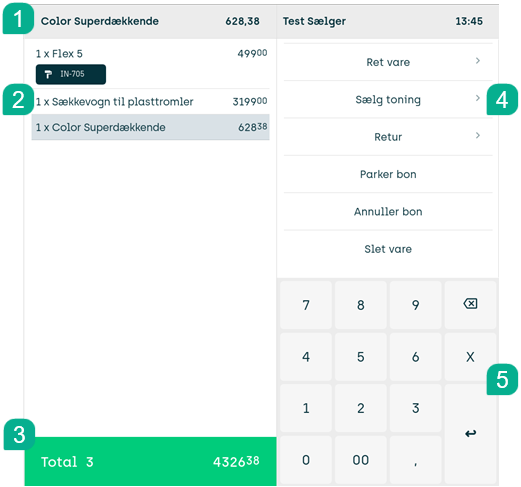
1: Information line – displays selected article, shop assistant ID, time, errors, etc.
2: Journal – the area where you build up a purchase order when you scan or manually add articles
3: Total area – where you tap to complete the sale and receive payment
4: Menu – content changes depending on what you're working on
5: Keypad – for entering article numbers, multiples, discounts, corrections, etc.
Sell articles
To sell an article, you can either:
-
Scan the article's barcode. As soon as the article is recognized, it's automatically added to the journal.
-
Use the till's keypad to manually enter the article number. Then tap
 to add the article to the journal.
 -
If your display has buttons for selling articles without barcodes (bread, fruit, vegetables, etc.), tap the required button.
-
Search for an article, and then add the article to the journal.
Discounts, including volume discounts, are automatically allocated. The only time you need to think about discounts is if you're going to grant a manual discount at your discretion, for example if an article is dented or slightly damaged.
Multiple units of the same article
If the customer wants to buy multiple units of the same article, you can use the till's keypad to enter the number of articles, and then scan just one of the identical articles.
Example: To sell five cans of the same soft drink, tap 5, and then scan one of the cans.
If you choose this method, the multiple instances of the same article will appear as a single line in the journal.
To quickly sell the most recently sold article on the journal again, you can tap Repeat.
For some articles, for example weight-variable articles where each article is in principle unique, you may not be able to sell multiple units in one go or to repeat the most recently sold article. Ask your supervisor if you're in doubt.
Articles without barcodes
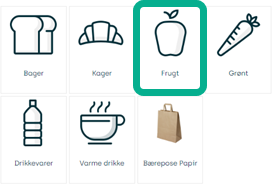
If a customer wants to buy an article without a barcode, for example a bread roll or an apple, you can tap a button that represents the required article category. Such buttons are typically in the left side of the display. Example:
-
Tap the button that represents the required article category, for example fruit:
-
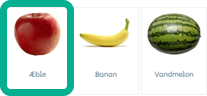
Then select the required article, for example an apple:
-
Then select the required quantity and add the article to the journal:
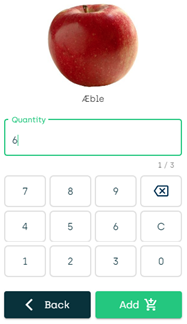
Default quantity is 1, so the you can simply tap Add if the customer only buys one unit of the article.
If an article on a button is sold out (which may be the case in restaurants, etc.), your organization may display it like this on the POS display:
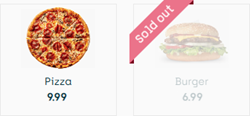
Some articles without barcodes are sold by weight rather than by quantity. See Articles that need to be weighed in the following.
Articles that need to be weighed
Some articles without barcodes (see Articles without barcodes in the previous) need to be weighed at the till in order to determine their price. In supermarkets, this may be the case with certain vegetables, nuts and seeds, bulk candy, and similar articles.
Scale implementations at tills vary from store to store. However, if you tap a button on the display that represents an article that's sold by weight, the display will automatically ask you to weigh the article to determine its price. Ask your supervisor if you're in doubt.
Once you've finished weighing the article, it'll typically show up with the following information in the journal:
-
The weight of the article in question (for example 0,034)
-
The unit of measure (for example kg (kilo))
-
The unit price (for example EUR 4.99 per kg)
-
The calculated (and possibly rounded) total (EUR 0.17 in the example)
Example:

Linked articles (for example bottle deposit)
When you sell an article, other articles (known as linked articles) may automatically be added to the journal and sold with it. That's typically the case with bottle deposit, but may also be the case with, for example, trampolines, which must in some countries always be sold together with a compulsory safety net.
Restrictions on number of units of an article
Some articles may have restrictions on how many units of the article that you can sell to a customer. For example, local laws may prevent you from selling more than one unit of over-the-counter medicine articles to a customer.
Also, discounted articles may have restrictions on how many units you can sell at the discounted price. For example, customers may only be able to buy five units of a discounted article at the discounted price, so that they must pay the full price for any further units that they buy.
Articles without a price
Most articles will have a price that's automatically used when you sell the article. However, some articles may not have a price, in which case the display will ask you to specify a price for the article. When that's the case, the display will typically indicate a minimum and maximum limit for how little / how much you can charge for the article.
Unknown articles
In very rare cases, you may also come across articles that aren't known by the 52ViKING system, and that consequently don't have a price. By default, the 52ViKING system will initially block sales of such articles, but in some organizations it's possible to enter a price for such an unknown article and sell it, so that the customer doesn't shop in vain. Ask your supervisor if you're in doubt.
VAT rates
VAT (Value-Added Tax) rates are automatically applied per article, so you don't need to do anything VAT-related as a shop assistant.
Your organization can set up multiple VAT rates, so your organization can accommodate all possible scenarios, including differential VAT and VAT-exempt articles.
If it's been set up in your organization, a VAT specification can automatically be included on receipts, so that customers can view how much VAT they've paid for individual article categories. Ask your supervisor if you're in doubt.
If a customer, for example a B2B customer who pays through an account, shouldn't pay VAT on some or all of their articles, 52ViKING POS automatically handles that as well.
Warranty certificates
Some articles may require that you issue a warranty certificate. When that's the case, the warranty certificate is automatically printed together with the receipt.
Some articles, however, may also require that the warranty certificate contains a serial number or similar. In such cases, the display will ask you to scan or manually enter the required number.
Gift cards (sell)
Some organizations sell gift cards that are issued by the 52ViKING system at the till. Such gift cards issued by 52ViKING have a unique number and a barcode that you can scan when they're later used for payment (see Get payment). When a customer buys a gift card issued by your organization’s 52ViKING system, the gift card is printed immediately after the customer's receipt.
The way that you sell gift cards can vary from organization to organization. For example, some organizations only sell gift cards in fixed denominations, for example EUR 50 and EUR 100, whereas other organizations sell gift cards of any value. Some organizations sell gift cards that can only be used once, whereas other organizations sell gift cards that can be partially redeemed, so that the holder doesn't need to spend its full value at once. Also, some organizations sell gift cards where the gift card value can be topped up later. Ask your supervisor if you're in doubt.
Articles that refer to another article
You may in rare cases find that an article refers to another article. For example, when you scan a tin of chopped tomatoes from brand A, you may find that it's a tin of chopped tomatoes from brand B that appears on the journal, typically with a generic text.
That can happen if your organization doesn't want to calculate revenue on each separate brand of tinned chopped tomatoes, so that they've instead chosen to sum up all sales of tinned chopped tomatoes on a single brand (brand B in the example).
Outsize articles
Some organizations sell articles that are so big or bulky that it's not practical for customers to bring them to the till in order to pay for them. Instead, customers typically pick a label from a display version of the article or write down a number to identify the article, and they then pay for the article at the till and collect it at a collection point in a warehouse or similar.
In such cases, your 52ViKING system may be set up to print a dispatch note that you can give to the customer when they've paid for the article, and they can then use the dispatch note as proof of purchase when they collect the article. Ask your supervisor if you're in doubt.
Non-physical articles
If relevant in your organization, you can sell non-physical articles at the till, for example services or delivery fees.
The way that you do it depends on how it's been implemented in your organization: It's typically by tapping a button in a section of the display that contains buttons for selling articles that don't have barcodes (see Structure of the display), but you may also search for such non-physical articles in order to sell them. Ask your supervisor if you're in doubt.
You can also sell other types of non-physical articles, such as mobile phone talk time, lotto numbers, etc. Ask your supervisor if you're in doubt.
Get payment
-
When you're ready to receive payment, tap the display's green Total area.
If required, you can continue sales to a customer after you've tapped the Total area. This can be relevant if the customer suddenly remembers other articles that they also want to buy before they pay for their total purchase. In that case, just sell the extra articles, and then tap the Total area again when you're ready to receive payment.
-
If you receive cash, enter the received cash amount, for example 200, on the display's keypad.
-
Then tap the required payment method in the menu on the right side of the display:
-
Credit card: Lets you handle payment through the till's credit card terminal. Credit card transactions typically need to be completed within a certain time. You can view the remaining time in the information line above the journal.
You can cancel credit card payment if you tap Cancel card transaction. Customers can also cancel credit card payment on the credit card terminal.
Your 52ViKING system may be set up so that you're able to receive credit card payment even in offline scenarios. Ask your supervisor if you're in doubt.
-
MobilePay: Lets you accept MobilePay payment.
In other countries, this option may be named after other mobile payment providers, for example Vipps in Norway.
-
Cash: Opens the cash drawer and displays how much change to give to the customer
Your organization may have defined a minimum or maximum allowed amount of cash that you can receive as well as maximum amount of change that you can give. Ask your supervisor if you're in doubt.
-
Account customer: Lets you handle account payment by scanning or entering the customer's account number (which will then be verified, credit checked, etc.).
In some organizations, account customers must sign for their purchases. In such cases, a receipt copy for the customer to sign is typically printed automatically.
Other payment methods, for example cash in foreign currencies, may be available in your organization, and certain rules may apply for those payment methods. For example, an organization may have decided that it accepts certain foreign currencies, but that change must always be given in the local currency. Ask your supervisor if you're in doubt.
Some organizations may take payment methods that can't be used to pay for specific articles. For example, certain card types may in some countries not be used to pay for over-the-counter medicine. Ask your supervisor if you're in doubt.
-

Gift cards (receive as payment)
Some organizations sell gift cards that are issued by the 52ViKING system at the till (see Sell articles). Such gift cards issued by 52ViKING have a unique number and a barcode that you can scan when they're later used for payment. 52ViKING then automatically deducts the gift card's value from the customer's subtotal.
You can also scan a gift card's barcode to simply view the gift card's balance.
Some organizations may also accept gift cards issued by others, for example if your store is located in a shopping center, and your store participates in the shopping center's gift card scheme. Such gift cards issued by others may or may not have barcodes. If they don't have barcodes, you may need to manually register the gift card number. Ask your supervisor if you're in doubt.
Gift cards can typically be partially redeemed, so that the holder doesn't need to spend its full value at once.
Some organizations issue gift cards that can only be used once. Holders of such one-time gift cards are well advised to spend their gift card's full value because they will not be able to use or get any remaining balance.
Gift cards can typically be used a partial payment together with other payment methods (see Partial payment with different payment methods in the following. Ask your supervisor if you're in doubt.
Bottle deposit redemption slips
The 52ViKING system integrates with reverse vending machine systems that issue redemption slips when customers return bottles, cans, etc. for which they've previously paid a deposit.
Customers can then redeem those slips at the till to simply get their money and leave. Typically, however, customers use their bottle deposit redemption slips as partial or full payment for new articles that they want to buy.
In either case, you simply scan the barcode on the bottle deposit redemption slip, and 52ViKING takes care of the rest.
-
If a customer wants their money, you scan the bottle deposit redemption slip, tap the display's green Total area (which will in that case show a negative amount), and then select the payment method with which the customer wants to receive their money
Some organizations may require a specific payment method, typically cash, to be used when paying out the value of bottle deposit redemption slips. Ask your supervisor if you're in doubt.
-
If a customer wants to use their bottle deposit redemption slip to pay for articles, you scan the bottle deposit redemption slip at any time during the sales process, and 52ViKING automatically deducts the redemption amount from the customer's subtotal
52ViKING automatically checks if slips have been redeemed before, if they're valid in your store, etc.
Vouchers
Some organizations issue vouchers (also known as coupons) that customers can use to get discounts. In physical stores, customers often present their vouchers at the time of payment, which is why we describe them here.
Vouchers can have a specific value or trigger a certain discount percentage, based on the type of voucher:
-
Generic vouchers can be used several times and distributed in various ways to a large amount of people, for example as vouchers that customers cut out of a local newspaper. Generic vouchers trigger a certain discount, and the vouchers themselves carry no value.
-
Unique vouchers have a value attached and can only be used once. The value can be either a fixed discount amount or a percentage, for example a comeback voucher that gives the customer EUR 5 off their next purchase above a certain amount.
Both voucher types typically have barcodes, so that they're easy for shop assistants to handle.
Vouchers may be valid for all articles, for specific articles or article groups, or for all articles except specific articles or article groups. That's why the display may in some cases inform you that a voucher isn't valid for use with some or all of a customer's articles.
Vouchers may be valid during certain periods of time only. 52ViKING checks if a voucher is unknown, has already been used, is not yet active, or has expired.
Partial payment with different payment methods
You can take partial payments, so that it's possible for customers to pay with combinations of payment methods.
Example: A customer has bought articles for EUR 30, and you've tapped the display's green Total area. The customer wants to pay EUR 20 in cash and the remaining EUR 10 with her card. You receive the EUR 20 in cash, enter 20 on the display's keypad, and select Cash in the menu. The 52ViKING system registers that EUR 20 have been received, and shows that EUR 10 remain to be paid. You then select Credit card in the menu, and the customer pays the remaining EUR 10. 52ViKING registers that the full amount has been paid and issues a receipt. It appears from the receipt how much has been paid in cash and by card respectively.
Other sales-related tasks
You can read more about how to handle other sales-related tasks, such as how to delete an article from the journal, how to manually grant a discount, how to park and resume a sale, etc. in the topic Handle more sales tasks in 52ViKING POS.
Related: Handle more sales tasks in 52ViKING POS
Related: Search for articles in 52ViKING POS
Related: Add/remove modifiers in 52ViKING POS
Related: Handle returns in 52ViKING POS
Related: 52ViKING POS till management (cash statements, etc.)
Related: 52ViKING POS dashboard
Related: Handle B2B customers in 52ViKING POS
© 2026 Fiftytwo A/S • Disclaimer
Last update: 30 March, 2026 14:06:31 CET
Share this page with your colleagues: